

Working with Hyperlinks


Working with Hyperlinks

HTML ਲਿੰਕਸ ਨੂੰ ਹਾਈਪਰਲਿੰਕਸ ਕਿਹਾ ਜਾਂਦਾ ਹੈ।  ਇੱਕ ਵੈੱਬਪੇਜ ਵਿੱਚ ਵੱਖ-ਵੱਖ ਲਿੰਕ ਸ਼ਾਮਲ ਹੋ ਸਕਦੇ ਹਨ।  ਇਹਨਾਂ ਲਿੰਕਸ ਉਪਰ ਕਲਿਕ ਕਰਕੇ ਯੂਜ਼ਰ ਏਕ ਵੈੱਬ ਪੇਜ਼/ਸਾਈਟ ਤੋਂ ਦੂਜੇ ਪੇਜ਼/ਸਾਈਟ ਉਪਰ ਜਾ ਸਕਦੇ ਹਨ। ਮੂਲ ਰੂਪ ਵਿੱਚ ਲਿੰਕਸ ਨੂੰ ਵੈੱਬ ਬ੍ਰਾਊਜ਼ਰ ਦੁਆਰਾ ਨੀਲੇ ਰੰਗ ਵਿੱਚ ਅੰਡਰਲਾਈਨ  ਕਰਕੇ ਦਿਖਾਇਆ ਜਾਂਦਾ ਹੈ। HTML ਵਿੱਚ <a> ਟੈਗ ਦੀ ਵਰਤੋਂ ਕਰਕੇ ਇੱਕ ਲਿੰਕ ਬਣਾਇਆ ਜਾ ਸਕਦਾ ਹੈ।  ਇਸ ਟੈਗ ਨੂੰ ਐਂਕਰ ਟੈਗ ਕਿਹਾ ਜਾਂਦਾ ਹੈ।  ਇਸ ਟੈਗ ਵਿੱਚ HREF ਐਟਰੀਬਿਊਟ  ਦੀ ਮਦਦ ਨਾਲ ਹਾਈਪਰਲਿੰਕ ਕੀਤੇ ਜਾਣ ਵਾਲੇ ਡਾਕੂਮੈਂਟ ਦਾ URL ਸੈੱਟ ਕੀਤਾ ਜਾਂਦਾ ਹੈ।  ਐਂਕਰ ਟੈਗ ਦੀ ਵਰਤੋਂ ਨਾਲ ਹਾਈਪਰਲਿੰਕ ਬਣਾਉਣ ਲਈ ਹੇਠਾਂ ਦਿਤੇ ਮੁਢਲੇ syntax ਦੀ ਵਰਤੋਂ ਕੀਤੀ ਜਾ ਸਕਦੀ ਹੈ। 

<a href="url">link text or Image</a>

HREF ਐਟਰੀਬਿਊਟਸ ਐਂਕਰ ਟੈਗ ਦਾ ਜਰੂਰੀ ਐਟਰੀਬਿਊਟ ਹੈ ਜੋ ਲਿੰਕ ਕੀਤੇ ਜਾਣ ਵਾਲੇ ਡਾਕੂਮੈਂਟ ਜਾਂ ਸਰੋਤ ਦੇ ਐਡਰੈਸ ਨੂੰ ਸੈੱਟ ਕਰਨ ਲਈ ਵਰਤਿਆ ਜਾਂਦਾ ਹੈ।  HREF ਐਟਰੀਬਿਊਟ ਤੋਂ ਬਿਨਾਂ ਐਂਕਰ ਟੈਗ ਦਾ ਕੋਈ ਵਜੂਦ ਨਹੀਂ ਹੈ ਰਹਿੰਗਾ।  

HTML links are hyperlinks.

You can click on a link and jump to another document.

When you move the mouse over a link, the mouse arrow will turn into a little hand.

Note: A link does not have to be text. A link can be an image or any other HTML element!

HTML Links - Syntax

The HTML <a> tag defines a hyperlink. It has the following syntax:

<a href="url">link text or Image</a>

The most important attribute of the <a> element is the href attribute, which indicates the link's destination.

The link text is the part that will be visible to the reader.

Clicking on the link text, will send the reader to the specified URL address.

Example
This example shows how to create a link to W3Schools.com:

<a href="http://gssskhokhar.com/">Visit gssskhokhar.com!</a>


Output
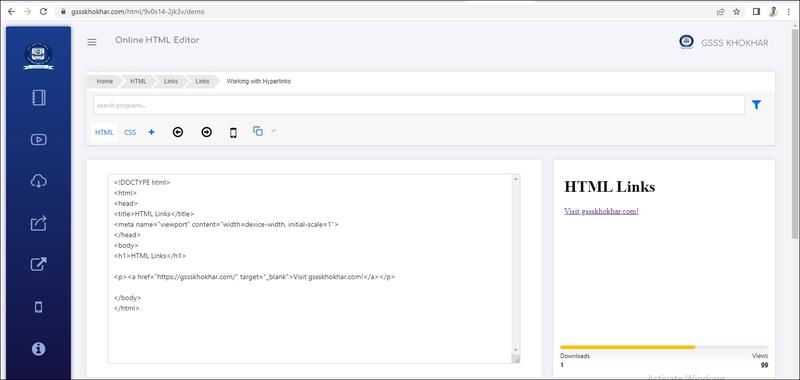


Live Demo & Try it yourself!

ਵੈੱਬ ਪੇਜਾਂ ਵਿਚ ਇਕ ਹਾਈਪਰਲਿੰਕਸ ਦੀਆਂ ਵੱਖ-ਵੱਖ ਸਟੇਟਸ (States) ਹੁੰਦੀਆਂ ਹਨ।  ਲਿੰਕ ਦੀਆਂ ਕੁਝ ਆਮ ਸਟੇਟਸ ਅਤੇ ਵੈੱਬ ਬ੍ਰਾਊਜ਼ਰਸ ਵਿਚ ਉਹਨਾਂ ਦੀ ਡਿਫਾਲਟ ਦਿੱਖ ਹੇਠ ਲਿਖੇ ਅਨੁਸਾਰ ਹੁੰਦੀ ਹੈ। 

1) ਅਨਵਿਜ਼ਿਟਡ ਲਿੰਕਸ (Unvisited Links) : ਇਹ ਉਹ ਸਾਰੇ ਲਿੰਕ ਹੁੰਦੇ ਹਨ ਜਿਹਨਾਂ ਉਪਰ ਯੂਜ਼ਰ ਵੱਲੋ ਅਜੇ ਕਲਿੱਕ ਨਹੀਂ ਕੀਤਾ ਗਿਆ ਹੁੰਦਾ। ਮੂਲ ਰੂਪ ਵਿੱਚ (By default) ਇੱਕ ਅਨਵਿਜ਼ਿਟਡ ਲਿੰਕ ਅੰਡਰਲਾਈਨ ਹੁੰਦਾ ਹੈ ਅਤੇ ਨੀਲੇ (blue) ਰੰਗ ਵਿੱਚ ਦਿਖਾਇਆ ਜਾਂਦਾ ਹੈ।  

2) ਵਿਜ਼ਿਟਡ ਲਿੰਕਸ (Visited Links) : ਇਹ ਉਹ ਲਿੰਕ ਹੁੰਦੇ ਹਨ ਜਿਹਨਾਂ ਉੱਪਰ ਯੂਜਰ ਪਹਿਲਾ ਹੀ ਕਲਿੱਕ ਕਰਕੇ ਉਹਨਾਂ ਨੂੰ ਓਪਨ ਕਰ ਚੁਕਿਆ ਹੁੰਦਾ ਹੈ।  ਮੂਲ ਰੂਪ ਵਿੱਚ (by default) ਇੱਕ ਵਿਜ਼ਿਟਡ ਲਿੰਕ ਅੰਡਰਲਾਈਨ ਹੁੰਦਾ ਹੈ ਅਤੇ ਜਾਮਨੀ (purple) ਰੰਗ ਵਿੱਚ ਦਿਖਾਇਆ ਜਾਂਦਾ ਹੈ। 

3) ਐਕਟਿਵ ਲਿੰਕਸ (Active Links) : ਇਹ ਲਿੰਕ ਉਹ ਸਟੇਟ ਹੁੰਦੀ ਹੈ ਜਦੋਂ ਯੂਜ਼ਰ ਇੱਕ ਅਨਵਿਜ਼ਿਟਡ ਲਿੰਕ ਉਪਰ ਕਲਿੱਕ ਕਰਦਾ ਹੈ।  ਮੂਲ ਰੂਪ ਵਿੱਚ (by default) ਇੱਕ ਐਕਟਿਵ ਲਿੰਕ ਅੰਡਰਲਾਈਨ  ਹੁੰਦਾ ਹੈ ਅਤੇ ਲਾਲ (red) ਰੰਗ ਵਿਚ ਦਿਖਾਇਆ ਜਾਂਦਾ ਹੈ। 


By default, links will appear as follows in all browsers:

    1) An unvisited link is underlined and blue

    2) A visited link is underlined and purple

    3) An active link is underlined and red

Tip: Links can of course be styled with CSS, to get another look!


  • Use the <a> element to define a link
  • Use the href attribute to define the link address
  • Use the target attribute to define where to open the linked document
  • Use the <img> element (inside <a>) to use an image as a link
  • Use the mailto: scheme inside the href attribute to create a link that opens the user's email program

The target Attribute - Setting Target Window


The target Attribute - Setting Target Window

By default, the linked page will be displayed in the current browser window. To change this, you must specify another target for the link.

The target attribute specifies where to open the linked document.


Live Demo & Try it yourself!

The target attribute can have one of the following values:

  • _self - Default. Opens the document in the same window/tab as it was clicked
  • _blank - Opens the document in a new window or tab
  • _parent - Opens the document in the parent frame
  • _top - Opens the document in the full body of the window

Linking with Images / Use an Image as a Link


Linking with Images / Use an Image as a Link


Live Demo & Try it yourself!

Absolute URLs vs. Relative URLs


Absolute URLs vs. Relative URLs

URL ਕੀ ਹੈ? URL ਦੀਆ ਵੱਖ-ਵੱਖ ਕਿਸਮਾਂ ਦਾ ਵਰਨਣ ਕਰੋ।

URL ਦਾ ਅਰਥ ਹੈ ਯੂਨੀਫਾਰਮ ਰਿਸੋਰਸ ਲੋਕੇਟਰ। ਵੈੱਬ ਸਰਵਰ ਉਪਰ ਕਿਸੇ ਫਾਈਲ ਜਾਂ ਫੋਲਡਰ ਦੀ ਲੋਕੇਸ਼ਨ ਨੂੰ ਦਰਸਾਉਂਦਾ ਹੋਇਆ ਐਡਰੈਸ URL ਅਖਵਾਉਂਦਾ  ਹੈ। ਹਰੇਕ ਵੈੱਬਸਾਈਟ ਜਾਂ ਵੈੱਬਪੇਜ ਦਾ ਇੱਕ ਵਿਲੱਖਣ URL ਹੁੰਦਾ ਹੈ।  

ਉਦਾਹਰਨ ਲਈ: (https://www.gssskhokhar.com/)  ਇਹ GSSS KHOKHAR ਦੀ ਵੈੱਬਸਾਈਟ ਦਾ URL ਹੈ।

URL ਦੀਆ  ਕਿਸਮਾਂ : URL  ਦੋ ਕਿਸਮਾਂ ਦੇ ਹੋ ਸਕਦੇ ਹਨ:

1) ਐਬਸੋਲਿਊਟ (Absolute) URL:   ਐਬਸੋਲਿਊਟ URL  ਕਿਸੇ File/ Folder  ਦੇ ਪੂਰੇ ਐਡਰੈਸ ਨੂੰ ਦਰਸਾਉਂਦਾ ਹੈ।

ਉਦਾਹਰਣ ਲਈ:  "d:/main/cat.jpg"

2) ਰੈਲੇਟਿਵ ( Relative) URL:  Relative URL ਮੌਜੂਦਾ ਫਾਈਲ/ ਫੋਲਡਰ  ਦੀ ਲੋਕੇਸ਼ਨ ਨੂੰ  ਦਰਸਾਉਂਦਾ ਹੈ। ਇਸ URL ਵਿੱਚ ਆਮ ਤੌਰ ਤੇ ਸਿਰਫ Folder ਦਾ ਨਾਮ  ਅਤੇ File    ਨਾਮ , ਜਾਂ ਸਿਰਫ ਫਾਈਲ ਦਾ ਨਾਮ ਸ਼ਾਮਲ ਹੁੰਦਾ ਹੈ।  
ਉਦਾਹਰਣ ਲਈ
:"cat.jpg"


Live Demo & Try it yourself!

Link to an Email Address


Link to an Email Address

Use mailto: inside the href attribute to create a link that opens the user's email program (to let them send a new email):

HTML ਵਿੱਚ <a> ਟੈਗ ਸਾਨੂੰ  ਪਹਿਲਾਂ  ਤੋਂ ਹੀ ਪਭਾਸ਼ਿਤ ਪ੍ਰਾਪਤਕਰਤਾ (predefined recipient) ਨੂੰ  ਈਮੇਲ  ਭੇਜਣ  ਲਈ  ਉਸਦਾ  ਈਮੇਲ  ਐਡਰੈਸ ਸੈੱਟ  ਕਰਨ ਦਾ ਆਪਸ਼ਨ ਵੀ ਪਰਦਾਨ ਕਰਦਾ  ਹੈ।  ਈਮੇਲ  ਟੈਗ ਦੇ ਰੂਪ ਵਿੱਚ <a> ਟੈਗ ਦੀ ਵਰਤੋਂ  ਕਰਦੇ  ਸਮੇਂ ਅਸੀਂ  href  ਐਟਰੀਬਿਊਟ ਦੇ  ਨਾਲ  "mailto:email_adress" ਦੀ  ਵਰਤੋਂ ਕਰਾਂਗੇ। ਜਦੋਂ  ਯੂਜਰ mailto: ਲਿੰਕ ਤੇ ਕਲਿੱਕ ਕਰਾਗੇ ਤਾਂ ਈਮੇਲ  ਭੇਜਣ ਲਈ  ਡਿਫਾਲਟ ਈਮੇਲ-ਕਲਾਇੰਟ (email-client) ਯੂਜਰ ਦੇ ਕੰਪਿਊਟਰ  ਉੱਪਰ ਖੁੱਲ ਜਾਂਦਾ  ਹੈ ਈਮੇਲ -ਕਲਾਇੰਟ ਇੱਕ ਅਜਿਹਾ ਪ੍ਰੋਗਰਾਮ ਜਾਂ  ਵੈੱਬ ਐਪਲੀਕੇਸ਼ਨ ਹੁੰਦਾ ਹੈ  ਜੋ ਸਾਡੇ  ਈਮੇਲ  ਸੰਦੇਸ਼ਾਂ  ਨੂੰ  ਪਰਾਪਤ ਕਰਨ, ਲਿਖਣ, ਭੇਜਣ ਅਤੇ ਰੱਖਣ ਲਈ ਤਿਆਰ ਕੀਤਾ ਗਿਆ ਹੈ। mailto: ਦੀ ਵਰਤੋਂ ਕਰਨ ਦਾ ਸਿੰਟੈਕਸ ਹੇਠਾਂ ਦਿੱਤਾ ਗਿਆ ਹੈ: <a href="mailto:abc@example.com">send email</a>


ਜੇਕਰ ਕੋਈ  ਯੂਜਰ send email ਲਿੰਕ  ਉਪਰ  ਕਲਿੱਕ  ਕਰਾਂਗਾ, ਤਾਂ  ਇਹ  ਯੂਜਰ ਦੇ ਕੰਪਿਊਟਰ  ਵਿੱਚ  ਇੰਸਟਾਲਡ (Installed) ਈਮੇਲ  ਕਲਾਇੰਟ (ਜਿਵੇਂ) ਕਿ:ਲੋਟਸ ਨੋਟਸ (Lotu notes), ਆਉਟਲੁਕ ਐਕਸਪ੍ਰੈਸ (outlookexpress), ਥੰਡਰਬਰਡ(Thunderbird) ਆਦਿ) ਨੂੰ  ਸਟਾਰਟ ਕਰ ਦੇਵੇਗਾ ਤਾਂ  ਜੋ  ਪਹਿਲਾਂ ਤੋਂ ਨਿਰਧਾਰਤ ਪ੍ਰਾਪਤ ਕਰਤਾ  abc@example.com ਨੂੰ  ਈਮੇਲ ਭੇਜੀ ਜਾ ਸਕੇ। ਜੇਕਰ ਯੂਜਰ ਦੇ ਕੰਪਿਊਟਰ ਵਿੱਚ  ਕੋਈ  ਵੀ  ਈਮੇਲ-ਕਲਾਇੰਟ  ਇੰਸਟਾਲ ਨਹੀਂ ਹੈ, ਤਾਂ  ਈਮੇਲ ਭੇਜਣਾ ਸੰਭਵ ਨਹੀਂ  ਹੋਵੇਗਾ।

Example

<a href="mailto:someone@example.com">Send email</a>


Live Demo & Try it yourself!

Button as a Link


Button as a Link

To use an HTML button as a link, you have to add some JavaScript code.

JavaScript allows you to specify what happens at certain events, such as a click of a button:

Example

<button onclick="document.location='index.html'">Button Link</button>


Live Demo & Try it yourself!

Link Titles


Link Titles

The title attribute specifies extra information about an element. The information is most often shown as a tooltip text when the mouse moves over the element.

Example

<a href="https://www.gssskhokhar.com/html/" target="_blank" title="Go to GSSS KHOKHAR HTML section">Visit our HTML Tutorial</a>


Live Demo & Try it yourself!

Link Colors


Link Colors

ਵੈੱਬ ਪੇਜਾਂ ਵਿਚ ਇਕ ਹਾਈਪਰਲਿੰਕਸ ਦੀਆਂ ਵੱਖ-ਵੱਖ ਸਟੇਟਸ (States) ਹੁੰਦੀਆਂ ਹਨ।  ਲਿੰਕ ਦੀਆਂ ਕੁਝ ਆਮ ਸਟੇਟਸ ਅਤੇ ਵੈੱਬ ਬ੍ਰਾਊਜ਼ਰਸ ਵਿਚ ਉਹਨਾਂ ਦੀ ਡਿਫਾਲਟ ਦਿੱਖ ਹੇਠ ਲਿਖੇ ਅਨੁਸਾਰ ਹੁੰਦੀ ਹੈ। 

1) ਅਨਵਿਜ਼ਿਟਡ ਲਿੰਕਸ (Unvisited Links) : ਇਹ ਉਹ ਸਾਰੇ ਲਿੰਕ ਹੁੰਦੇ ਹਨ ਜਿਹਨਾਂ ਉਪਰ ਯੂਜ਼ਰ ਵੱਲੋ ਅਜੇ ਕਲਿੱਕ ਨਹੀਂ ਕੀਤਾ ਗਿਆ ਹੁੰਦਾ। ਮੂਲ ਰੂਪ ਵਿੱਚ (By default) ਇੱਕ ਅਨਵਿਜ਼ਿਟਡ ਲਿੰਕ ਅੰਡਰਲਾਈਨ ਹੁੰਦਾ ਹੈ ਅਤੇ ਨੀਲੇ (blue) ਰੰਗ ਵਿੱਚ ਦਿਖਾਇਆ ਜਾਂਦਾ ਹੈ।  

2) ਵਿਜ਼ਿਟਡ ਲਿੰਕਸ (Visited Links) : ਇਹ ਉਹ ਲਿੰਕ ਹੁੰਦੇ ਹਨ ਜਿਹਨਾਂ ਉੱਪਰ ਯੂਜਰ ਪਹਿਲਾ ਹੀ ਕਲਿੱਕ ਕਰਕੇ ਉਹਨਾਂ ਨੂੰ ਓਪਨ ਕਰ ਚੁਕਿਆ ਹੁੰਦਾ ਹੈ।  ਮੂਲ ਰੂਪ ਵਿੱਚ (by default) ਇੱਕ ਵਿਜ਼ਿਟਡ ਲਿੰਕ ਅੰਡਰਲਾਈਨ ਹੁੰਦਾ ਹੈ ਅਤੇ ਜਾਮਨੀ (purple) ਰੰਗ ਵਿੱਚ ਦਿਖਾਇਆ ਜਾਂਦਾ ਹੈ। 

3) ਐਕਟਿਵ ਲਿੰਕਸ (Active Links) : ਇਹ ਲਿੰਕ ਉਹ ਸਟੇਟ ਹੁੰਦੀ ਹੈ ਜਦੋਂ ਯੂਜ਼ਰ ਇੱਕ ਅਨਵਿਜ਼ਿਟਡ ਲਿੰਕ ਉਪਰ ਕਲਿੱਕ ਕਰਦਾ ਹੈ।  ਮੂਲ ਰੂਪ ਵਿੱਚ (by default) ਇੱਕ ਐਕਟਿਵ ਲਿੰਕ ਅੰਡਰਲਾਈਨ  ਹੁੰਦਾ ਹੈ ਅਤੇ ਲਾਲ (red) ਰੰਗ ਵਿਚ ਦਿਖਾਇਆ ਜਾਂਦਾ ਹੈ। 


Example

Here, an unvisited link will be green with no underline. A visited link will be pink with no underline. An active link will be yellow and underlined. In addition, when mousing over a link (a:hover) it will become red and underlined:

<style>
a:link {
  color: green;
  background-color: transparent;
  text-decoration: none;
}

a:visited {
  color: pink;
  background-color: transparent;
  text-decoration: none;
}

a:hover {
  color: red;
  background-color: transparent;
  text-decoration: underline;
}

a:active {
  color: yellow;
  background-color: transparent;
  text-decoration: underline;
}
</style>


Live Demo & Try it yourself!

By default, links will appear as follows in all browsers:

    1) An unvisited link is underlined and blue

    2) A visited link is underlined and purple

    3) An active link is underlined and red

Tip: Links can of course be styled with CSS, to get another look!

Link Buttons


Link Buttons

A link can also be styled as a button, by using CSS:

Example

<style>
a:link, a:visited {
  background-color: #f44336;
  color: white;
  padding: 15px 25px;
  text-align: center;
  text-decoration: none;
  display: inline-block;
}

a:hover, a:active {
  background-color: red;
}
</style>


Live Demo & Try it yourself!

Creating Bookmarks or Named Anchors


Creating Bookmarks or Named Anchors

HTML links can be used to create bookmarks, so that readers can jump to specific parts of a web page.


Create a Bookmark in HTML

Bookmarks can be useful if a web page is very long.

To create a bookmark - first create the bookmark, then add a link to it.

When the link is clicked, the page will scroll down or up to the location with the bookmark.

Example

First, use the id attribute to create a bookmark:

<h2 id="C4">Chapter 4</h2>

Then, add a link to the bookmark ("Jump to Chapter 4"), from within the same page:


Live Demo & Try it yourself!